Bitwarden 2FA setup — TOTP, FIDO2 and recovery codes
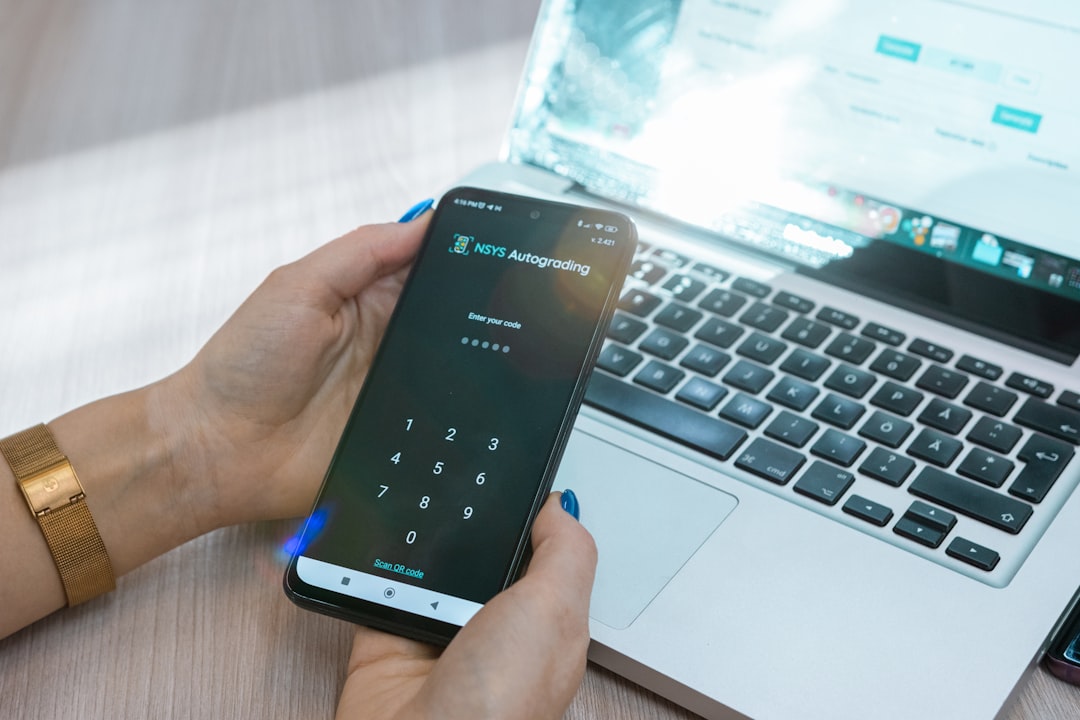
2FA on your password manager master account is the single most important security configuration you can make. The vault contains every credential you own; if an attacker gets the master password (phishing, keylogger, weak choice), 2FA is what stops the compromise.
This guide covers Bitwarden's 2FA options end to end — TOTP authenticator apps, FIDO2 hardware security keys, recovery codes, and the trade-offs between them.
Enable TOTP on your Bitwarden master account today — it's free, takes 5 minutes, and stops 99% of credential-based attacks. Add FIDO2 hardware key (Premium $10/year) if you're a high-value target — journalists, security professionals, anyone who's been targeted before. Save the recovery code somewhere physical and offline.
Why master-account 2FA is non-negotiable
Without 2FA, the only thing protecting your entire vault is your master password. If that's compromised — through:
- A phishing site that looked like Bitwarden's login page
- Malware or keylogger on your machine
- A weak master password that was brute-forced from a dump
- Shoulder-surfing in a public space
- Reuse from another service that got breached
...the attacker has full vault access. Every password, every TOTP secret stored in the vault (Premium), every secure note. The blast radius is your entire digital identity.
2FA breaks this attack: even with the master password, an attacker needs the second factor (which they don't have) to log in. Phishing is partially defeated; brute-force is stopped cold; malware that captured the master is moot.
Bitwarden's 2FA options
| Method | Tier | Phishing-resistant? | Convenience |
|---|---|---|---|
| TOTP authenticator app | Free | Partial (TOTP can be phished in real-time) | High |
| Email codes | Free | No (email account is the weak link) | High but slow |
| FIDO2 / WebAuthn | Premium | Yes (full) | Medium (need physical key) |
| Duo | Premium | Mostly (push approval) | Medium |
| YubiKey OTP | Premium | Partial | High (touch-to-emit) |
Recommended starting point: TOTP via authenticator app. Free, fast, blocks 99% of attacks.
For high-value targets: add FIDO2 / WebAuthn (Premium). Hardware security key like YubiKey 5 series. Phishing-resistant because the key cryptographically verifies the actual domain.
Step-by-step: TOTP setup
Pick an authenticator app
Recommendations:
- Aegis Authenticator (Android, FOSS) — recommended for de-Googled or privacy-focused users.
- 2FAS Auth (iOS + Android) — open source, simple, has cloud-sync option.
- Google Authenticator — works on iOS and Android, has cloud sync (controversial — some users prefer not to have it).
- Microsoft Authenticator — works, especially if you're in Microsoft ecosystem.
- Authy — multi-device, but discontinuing desktop in 2024 means it's mobile-only now.
Avoid: storing TOTP secrets only in Bitwarden Premium itself — that creates a circular dependency. The TOTP that protects your password manager should not live inside that password manager.
Enable TOTP on Bitwarden
- Sign in at vault.bitwarden.com.
- Click your avatar (top-right) → Account Settings.
- Click Security → Two-step Login.
- Find Authenticator App in the list, click Manage.
- Re-enter your master password (Bitwarden requires this for security-sensitive operations).
- Bitwarden displays a QR code and a 32-character secret string.
- Open your authenticator app, add a new entry, scan the QR code.
- Authenticator app shows a 6-digit code that refreshes every 30 seconds.
- Enter the current 6-digit code in Bitwarden's verification field.
- Click Enable.
Save the recovery code immediately
After enabling, Bitwarden shows a recovery code — a long random string. Save it physically. Print it, write it on paper, store in a safe. Don't store it digitally — that defeats the purpose.
The recovery code lets you log in once if you lose your authenticator app (phone destroyed, etc.). Used once, you must regenerate.
Test it
- Log out of Bitwarden completely.
- Log in with email + master password.
- Bitwarden now prompts for the 6-digit code from your authenticator.
- Enter the code, you're in.
FIDO2 / YubiKey setup (Premium)
FIDO2 is the gold standard. The hardware security key has a cryptographic key inside that proves possession; even a perfect phishing site can't trick the key into authorising a different domain.
Get a hardware key
- YubiKey 5 series (Yubico) — most popular. ~$50-70. USB-A, USB-C, NFC variants available.
- Google Titan — Google's offering. ~$30-50.
- SoloKey, OnlyKey, Nitrokey — open-source alternatives.
Buy two — one daily, one in a safe as backup. Losing your only hardware key means using the recovery code.
Enable on Bitwarden
- Bitwarden web vault → Account Settings → Security → Two-step Login.
- Find FIDO2 WebAuthn, click Manage.
- Re-enter master password.
- Plug your hardware key into a USB port.
- Click Read Key.
- Touch the key when it blinks (or wait for fingerprint sensor).
- Name the key (e.g., "YubiKey 5 daily"). Click Save.
- Repeat for your backup key.
Configure preference
If you have both TOTP and FIDO2 enabled, Bitwarden lets you choose which is preferred. Settings → Two-step Login → set FIDO2 as primary, TOTP as fallback. Now sign-in flow: try hardware key first, fall back to TOTP if no key available.
Recovery codes
The recovery code is generated when you enable any 2FA method. It's a single string that bypasses 2FA when used.
- Single use: after using it once, regenerate from settings.
- Bypasses all 2FA: any 2FA method you have enabled is overridden.
- Master password still required: recovery code only handles the second factor.
- Storage: physical paper, fireproof safe, or split across multiple safes for paranoia.
If the recovery code is compromised and the master password is compromised, full vault access is possible. The recovery code is essentially a "second master password" — treat it with the same care.
When TOTP is enough vs when to add FIDO2
TOTP is enough if:
- You're a typical individual — banking, social media, work logins.
- You don't have a specific reason to think you're being targeted.
- Your master password is genuinely strong (passphrase, never used elsewhere).
- You don't want to spend $10/year on Premium.
Upgrade to FIDO2 if:
- You're a journalist, activist, security professional, or otherwise high-value target.
- You've been phished before.
- You travel internationally and use unfamiliar networks.
- You suspect your master password might be guessable to someone who knows you.
- You want defence-in-depth and the YubiKey cost ($50) is acceptable.
Troubleshooting
Lost authenticator app
Use the recovery code. After login, regenerate 2FA setup with new authenticator. Generate fresh recovery code.
Lost recovery code AND authenticator
This is the failure case. Bitwarden cannot recover for you (zero-knowledge architecture). The account becomes inaccessible. Mitigations going forward: keep recovery code in multiple physical locations.
TOTP code keeps showing "invalid"
Time drift — your phone clock vs Bitwarden's server clock disagree. Most authenticator apps tolerate ±90 seconds. Sync your phone clock (Settings → Date & Time → automatic). If still fails, regenerate TOTP setup.
FIDO2 key not detected
Browser must be on HTTPS (Bitwarden always is). USB port must be functional. On Windows, run as standard user (not admin elevated). On Linux, udev rules may need adjustment for non-root key access.
I want to disable 2FA
Account Settings → Security → Two-step Login → Manage on the method → Disable. Re-enter master password to confirm. Strongly discouraged — but possible.